

Reading Feature
Reading more books in your spare time is also wonderful.
Reading Settings
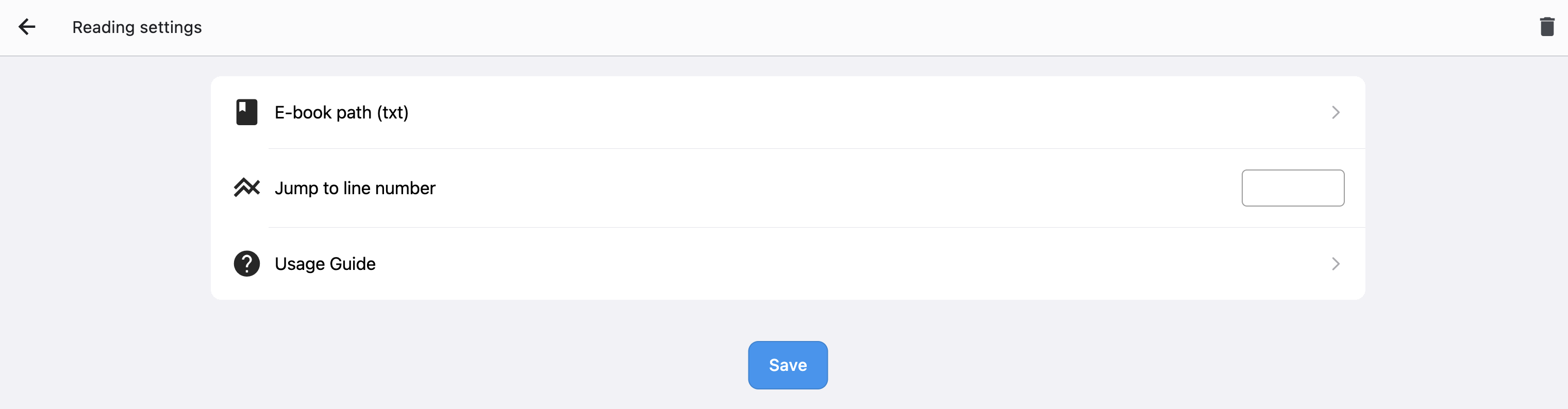
- E-book Path: Select the e-book you want to read. Currently only TXT format is supported
- Jump to Line: Enter the line number you want to jump to directly. This line number will be displayed in the reading interface.
- User Guide: This guide will be displayed upon entering
- After completing the settings, click Save to finish.
Reading Mode
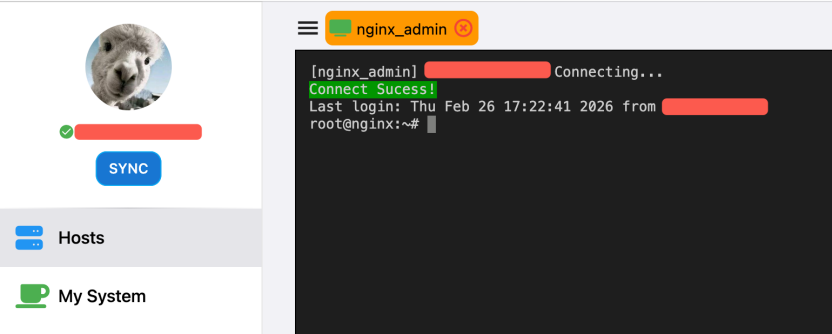
- Go to the server menu and successfully connect to any server.
- When the command line is active (i.e., ready to input), press Ctrl+Alt+F on Windows/Linux, or Control+Option+F on macOS. The command line window will enter Reading Mode.
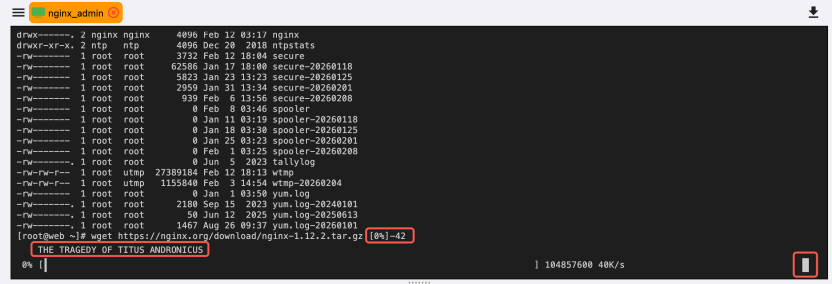
- The commands and output content displayed above are purely for visual effect, simulating a command interface. They are for display only.
- [0%]-42: Here 0% represents the current reading progress as a percentage of the entire book. The number 42 indicates you are currently reading line 42. If you open the application on another computer and want to quickly jump to your previous reading position, you can enter the corresponding line number in the Reading Settings above.
- The line below displays the book content. You can scroll through the content using the Up and Down arrow keys on your keyboard.
- The download progress bar at the bottom is purely an animation effect and does not download anything.
- If the small square on the far right is displayed, it means the reading window is active and you can scroll through content using the arrow keys. If it disappears, the window is inactive and will not respond to any keystrokes. Click anywhere in the window to make the square reappear and activate the window.
- When the window is active, press Ctrl+Alt+F on Windows/Linux, or Control+Option+F on macOS to exit Reading Mode and return to the server command line mode.