

Sync Feature
- Use the sync feature to synchronize data across your various devices
💡 Note: A locally self-built sync server does not require VIP activation to use.
Sync Content
- Server Configuration
- SHELL Scripts
- My System
- My Memos
Sync Settings
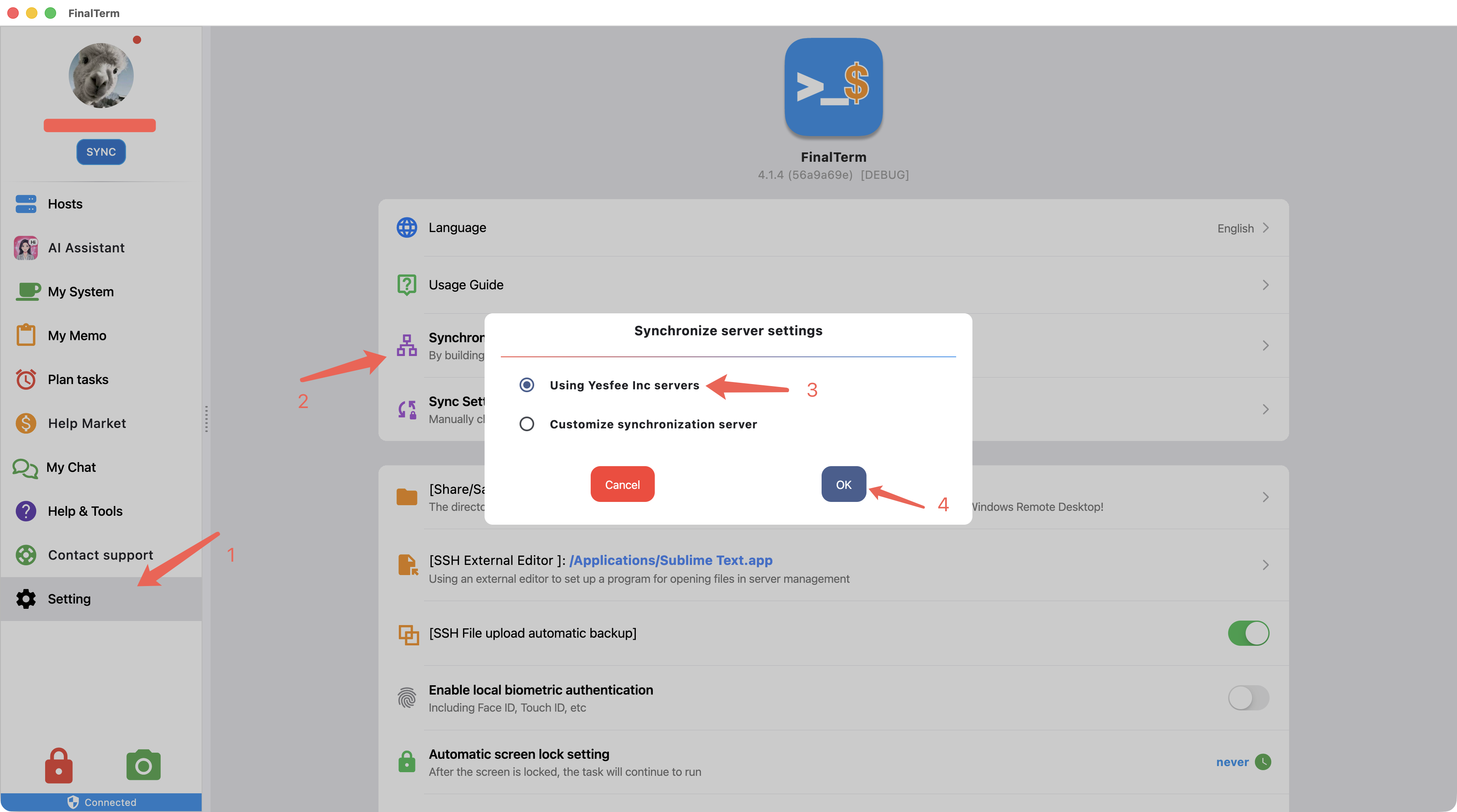
- The system uses the yesfee server for sync by default
- The modification steps are shown in the image above
Desktop Sync
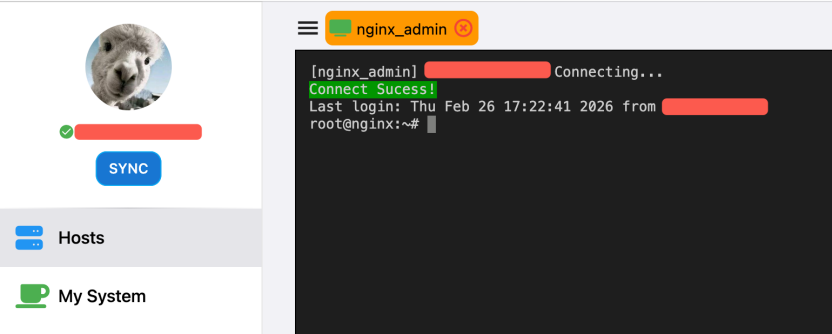
- The desktop sync button is located below the user avatar in the sidebar
- Click the sync button to sync the current application content to the server, and simultaneously sync the latest content from the server to the current application.
💡 Tip: The sync button needs to be manually triggered to perform synchronization.
Mobile Sync
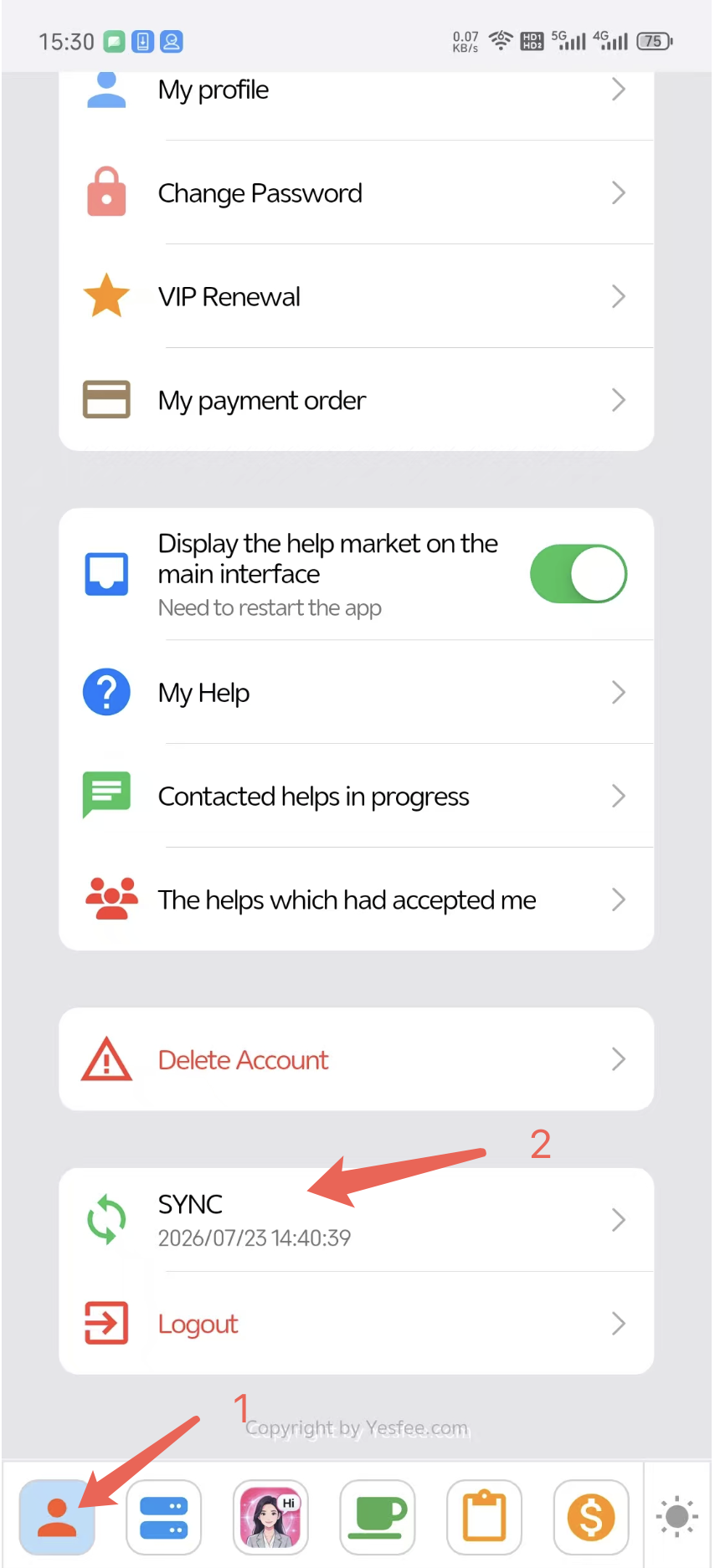
- Mobile sync is located in the user's menu interface
- Click the sync button to sync the current application content to the server, and simultaneously sync the latest content from the server to the current application.
💡 Tip: The sync button needs to be manually triggered to perform synchronization.
Sync Content Configuration
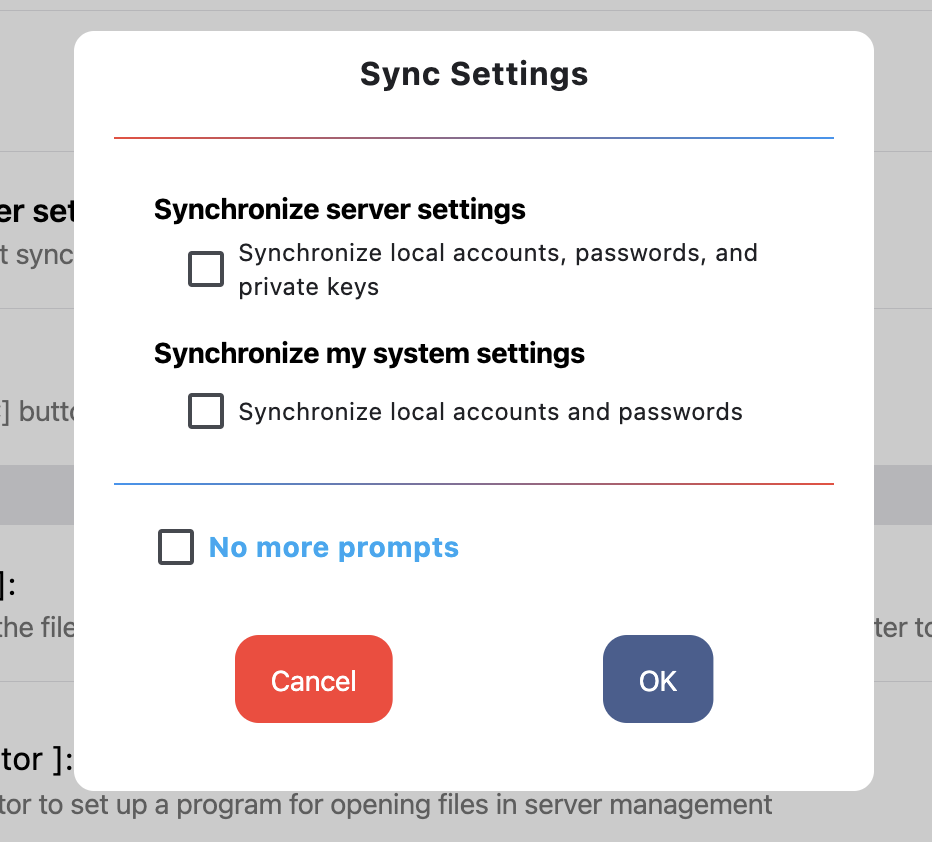
- When clicking sync, a sync content confirmation dialog will appear. You can set whether to sync passwords here