

Remote Windows Operation Guide
Supported Platforms
Connecting to Windows
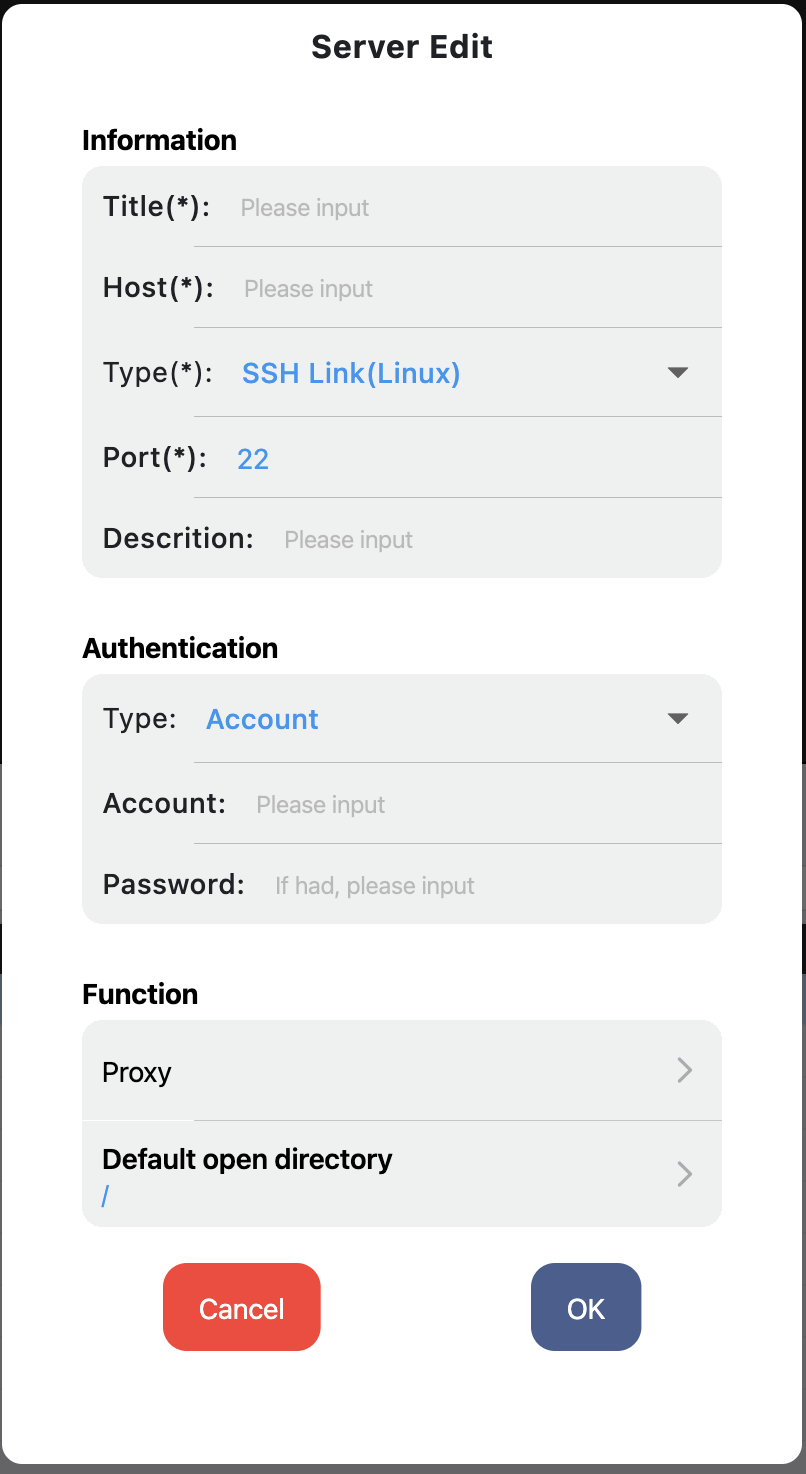
- When creating a server in the server management interface, select Windows as the type.
- Enter the Windows IP, port, username, password, and other information as prompted by the interface.
- After saving, double-click to connect directly.
- When connecting for the first time, if the Windows shared directory has not been selected, the system will prompt you to choose one. Follow the software instructions to proceed.
Desktop Client
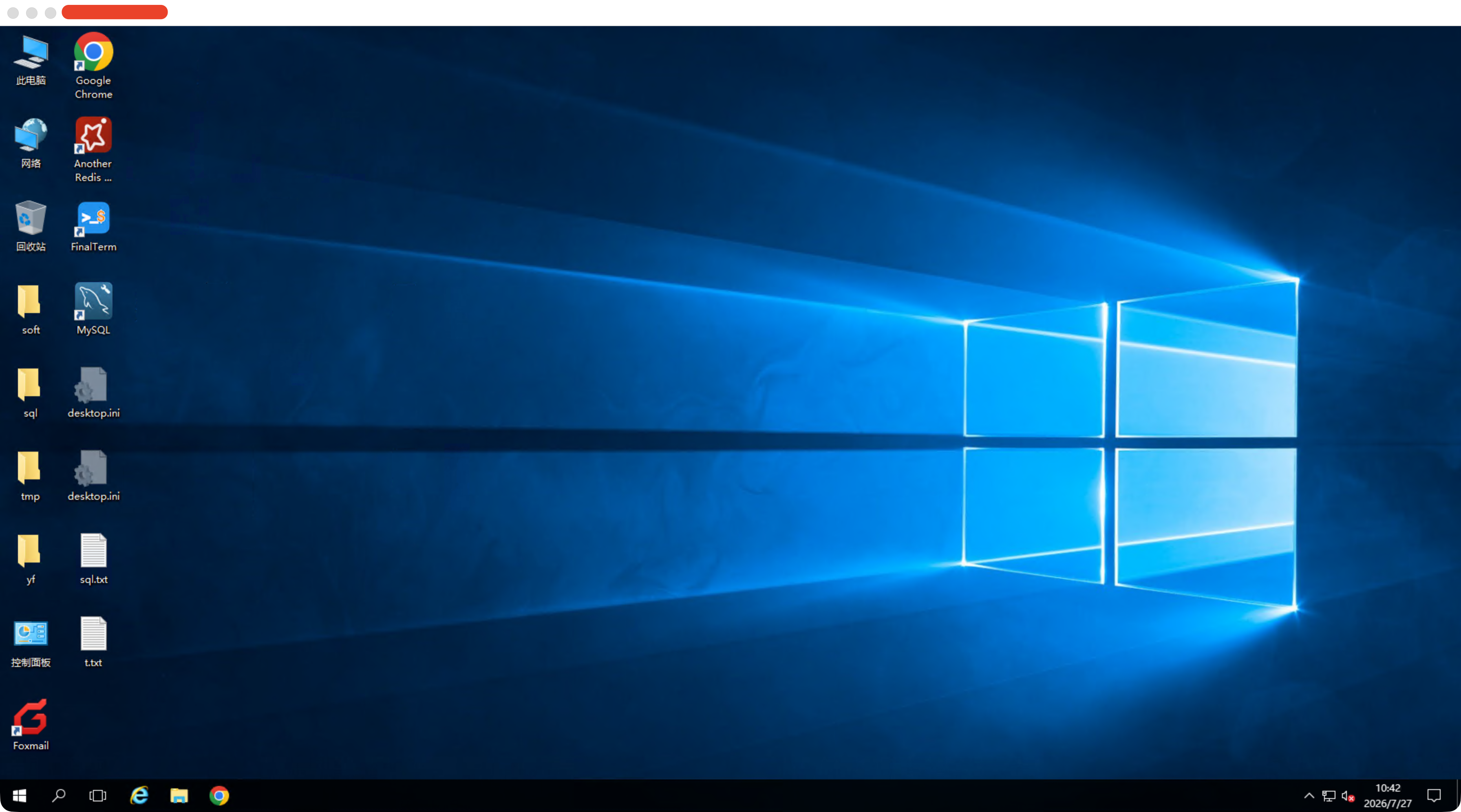
Operation
- Operations on the desktop client are no different from operating Windows on your own computer. You can use the mouse and keyboard for input and interaction.
Copy and Paste
- Paste content from your local computer to the remote Windows computer.
- Paste content from the remote Windows computer to your local computer.
File Transfer
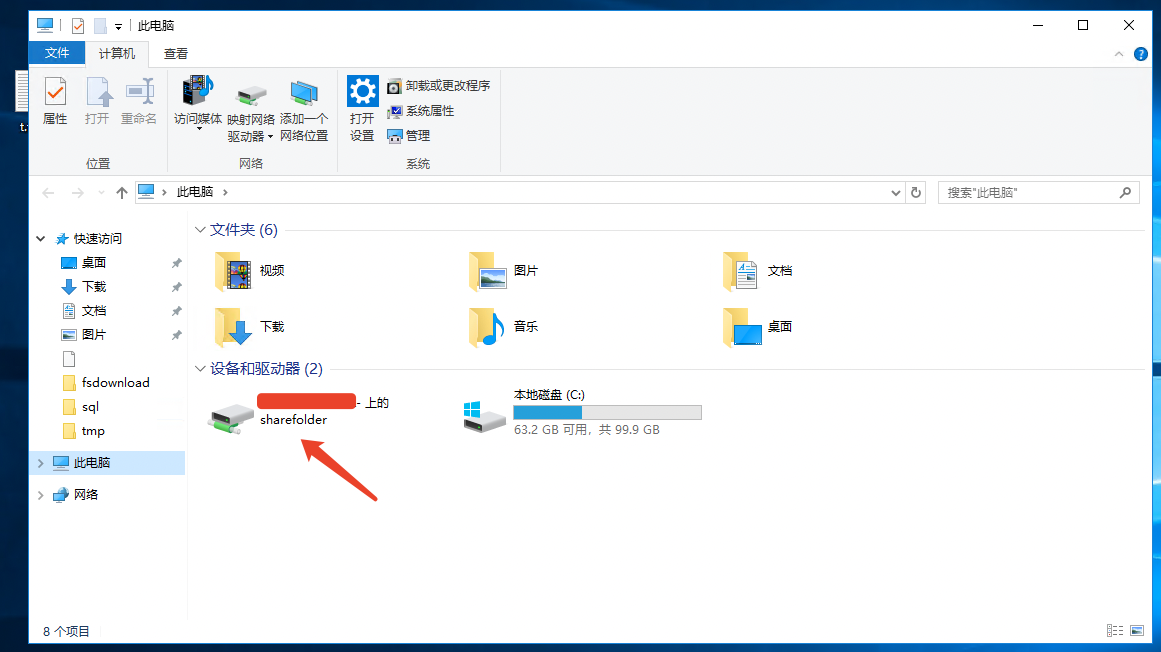
- File transfer with the remote Windows is implemented by sharing a directory on the local computer.
- Transfer files from the local computer to remote Windows:
Place the files to be transferred into the shared directory, then open the shared directory in the remote session, find the file, and copy it to another location on the Windows system. - Transfer files from remote Windows to the local computer:
Copy the file on the remote Windows to the shared directory, then open the shared directory on the local computer, find the file, and copy it to another location on your computer.
Mobile Client
Operation
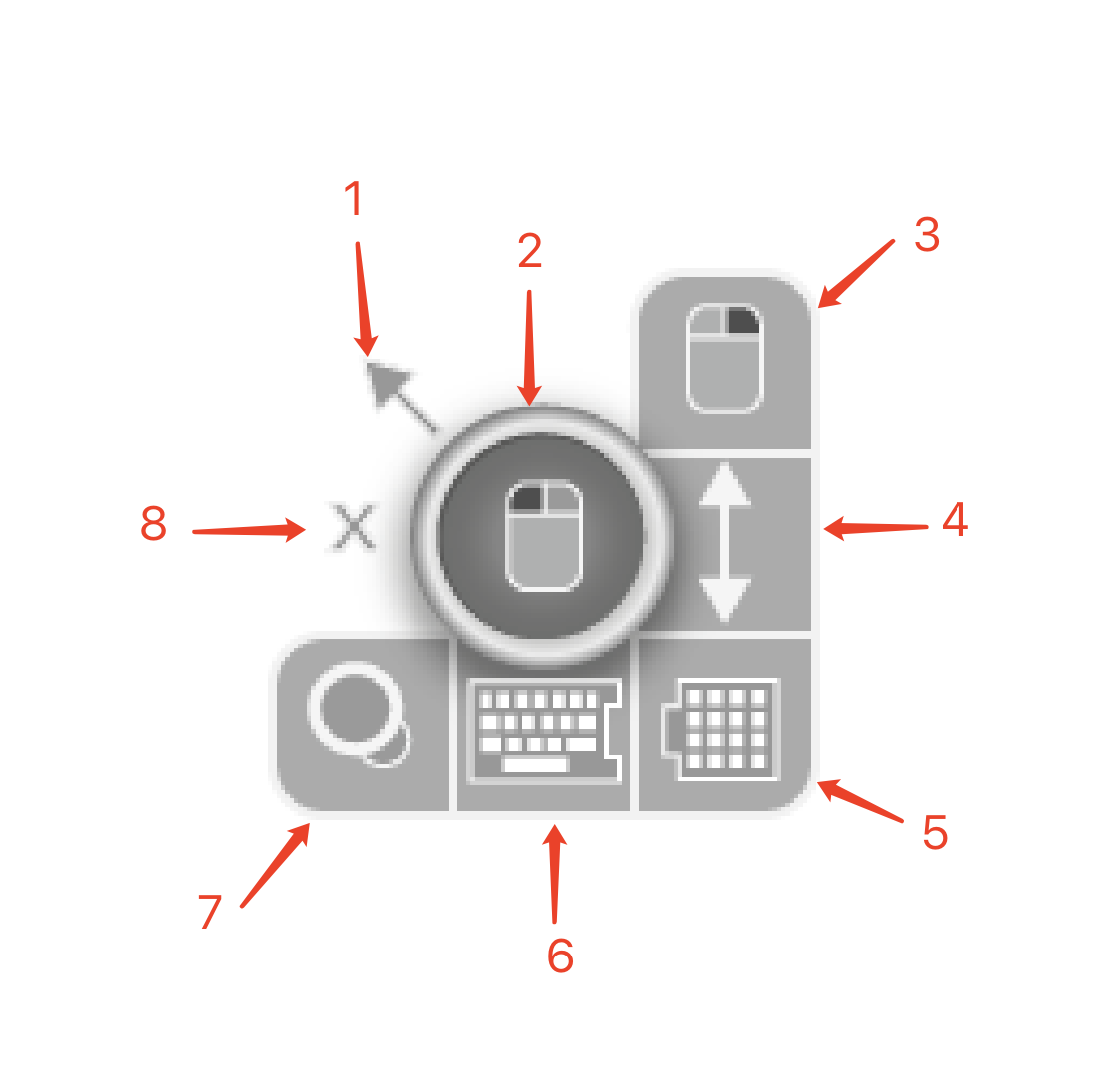
- Equivalent to the mouse cursor position on the desktop client.
- Left mouse button: Tap to simulate a left mouse click.
- Right mouse button: Tap to simulate a right mouse click.
- Scroll bar: Tap and drag up or down to scroll the active Windows window.
- Function keys: Tap to toggle the function key keyboard on or off.
- Main keyboard: Tap to toggle the system keyboard on or off.
- Fit to screen: Tap to fit the Windows display to the current screen size.
- Close: Tap to exit the Windows remote connection.
Copy and Paste
- Paste content from the current mobile device to the remote Windows computer.
- Paste content from the remote Windows computer to the current mobile device.
File Transfer
- File transfer is not currently supported on the mobile client.