

Shell Scripts
Manage shell scripts. Shell scripts are shared across all servers.
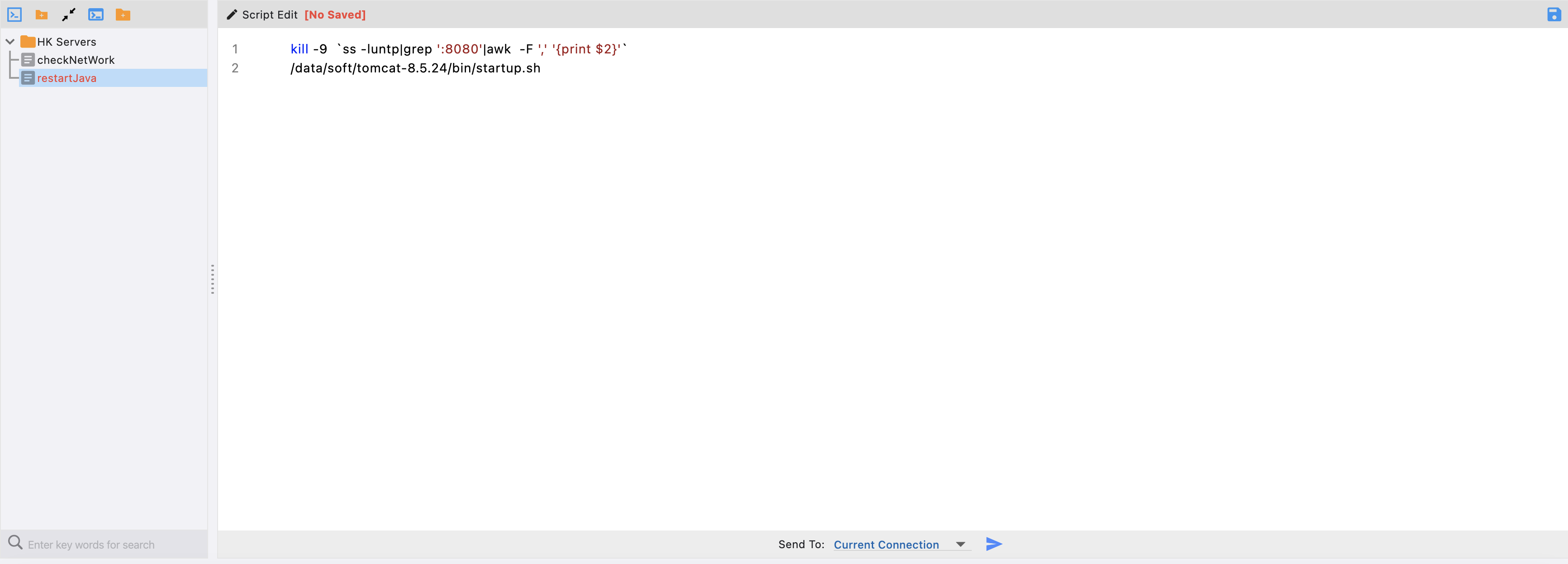
Sidebar
Create Directory
- Click the directory icon button in the top menu area of the sidebar.
- A dialog will appear prompting for a directory name. Enter the desired directory name.
- Click OK to complete the directory creation.
💡Tip: Directories can contain nested levels of subdirectories and script files.
Create Script
- Right-click on a directory, or click the Create Script button in the top menu area.
- Enter the name of the script file in the dialog that appears.
- Click OK to complete the file creation.
Edit Script
- Select the script you want to edit. The script content will be displayed in the editor area.
- Edit your script in the editor.
- Click the Save button or use the system save shortcut to save.
💡Tip: Windows: Ctrl+S, MacOS: Command+S
Run Script
- There is an Execute button at the bottom of the editor.
- You can send the script to the currently active server for execution.
- You can send the script to all open servers for execution.
- A dialog will display the execution results.
Delete Script
- Select the script to delete. On desktop, right-click; on mobile, long-press. Choose Delete from the menu.
- A confirmation dialog will appear.
- Click OK to confirm the deletion.
Move Directory/Script
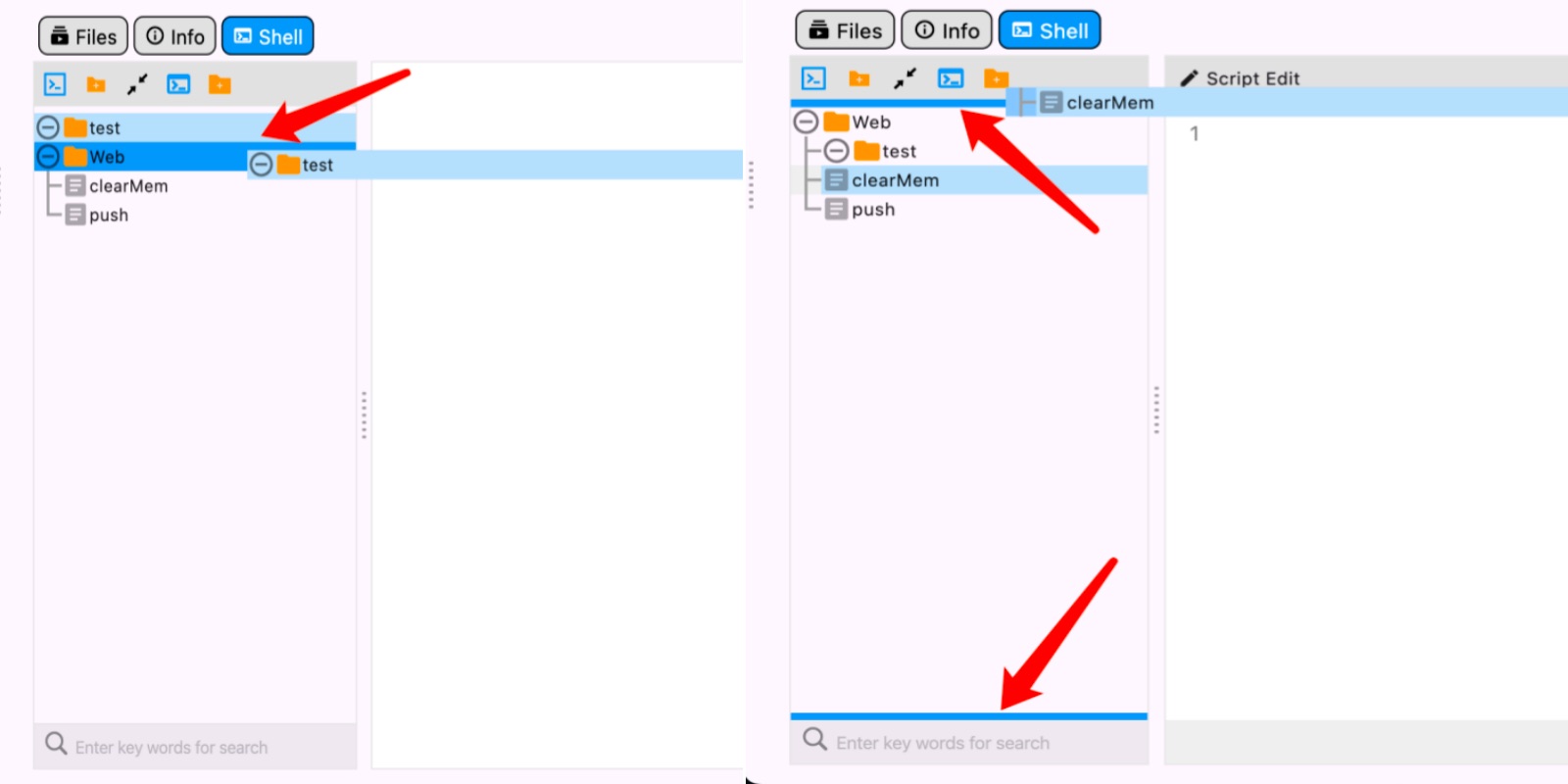
- Supports dragging a directory or script directly onto another directory for quick moving.
- Supports dragging a directory or script to the top or bottom edge for quick moving.
💡Tip: Drag and drop is not supported on mobile.