

SSH Interface
This section introduces the command-line operation interface after successfully connecting to a Linux server.
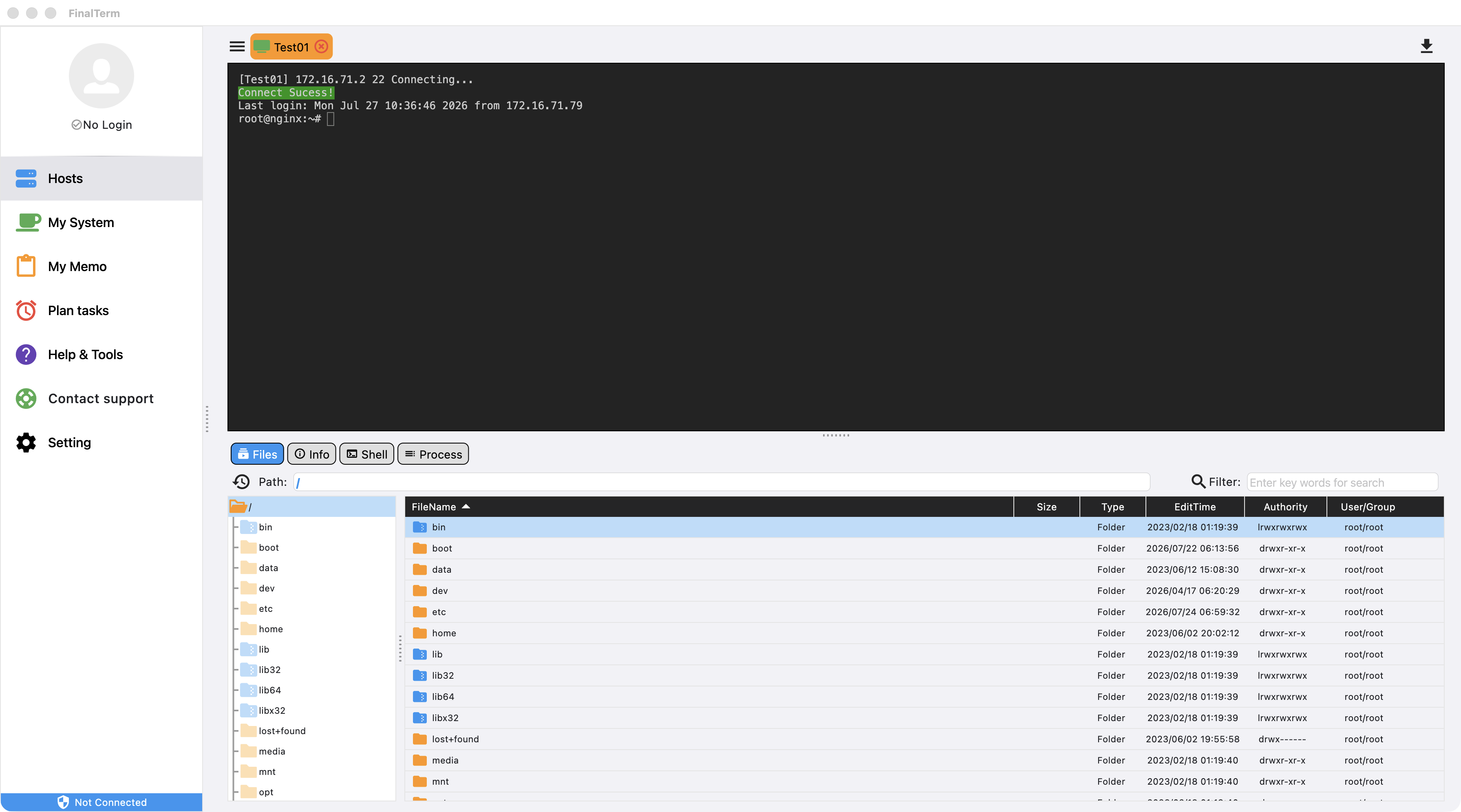
Right-Click Menu

Copy
- Drag to select the text content output on the interface.
- Right-click and choose Copy from the menu to copy the selected content to the clipboard.
Paste
- Paste the clipboard content into the current input.
AI
- Drag to select the content on the interface that you want to ask AI about, such as error messages.
- Click the AI button to navigate to the AI assistant interface. The selected content will be sent to AI for analysis, and the AI response will be displayed.
Clear Input
- When you have entered a long string of incorrect content, clicking this menu will clear all characters from the cursor position to the beginning of the line.
- Equivalent to the shortcut Ctrl+U.
Smart Suggestions
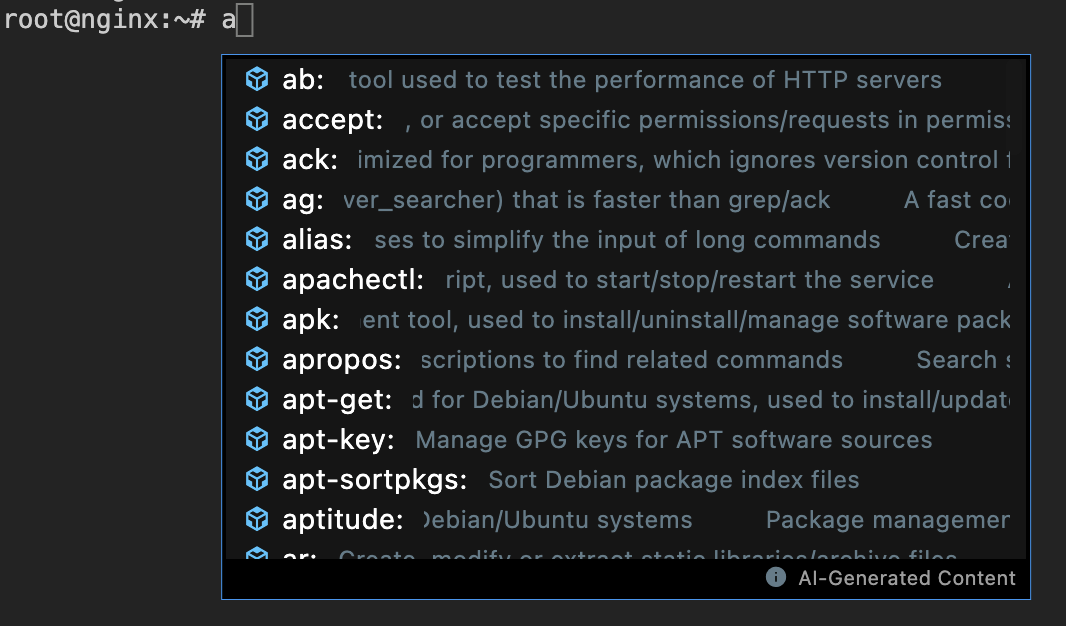 The software supports intelligent suggestions for commands and their parameters, helping you find and quickly complete command input even when you don't remember a specific command or parameter, improving productivity.
Drag and Drop
Supports dragging files from the file manager directly into the command-line interface to automatically get the file path.
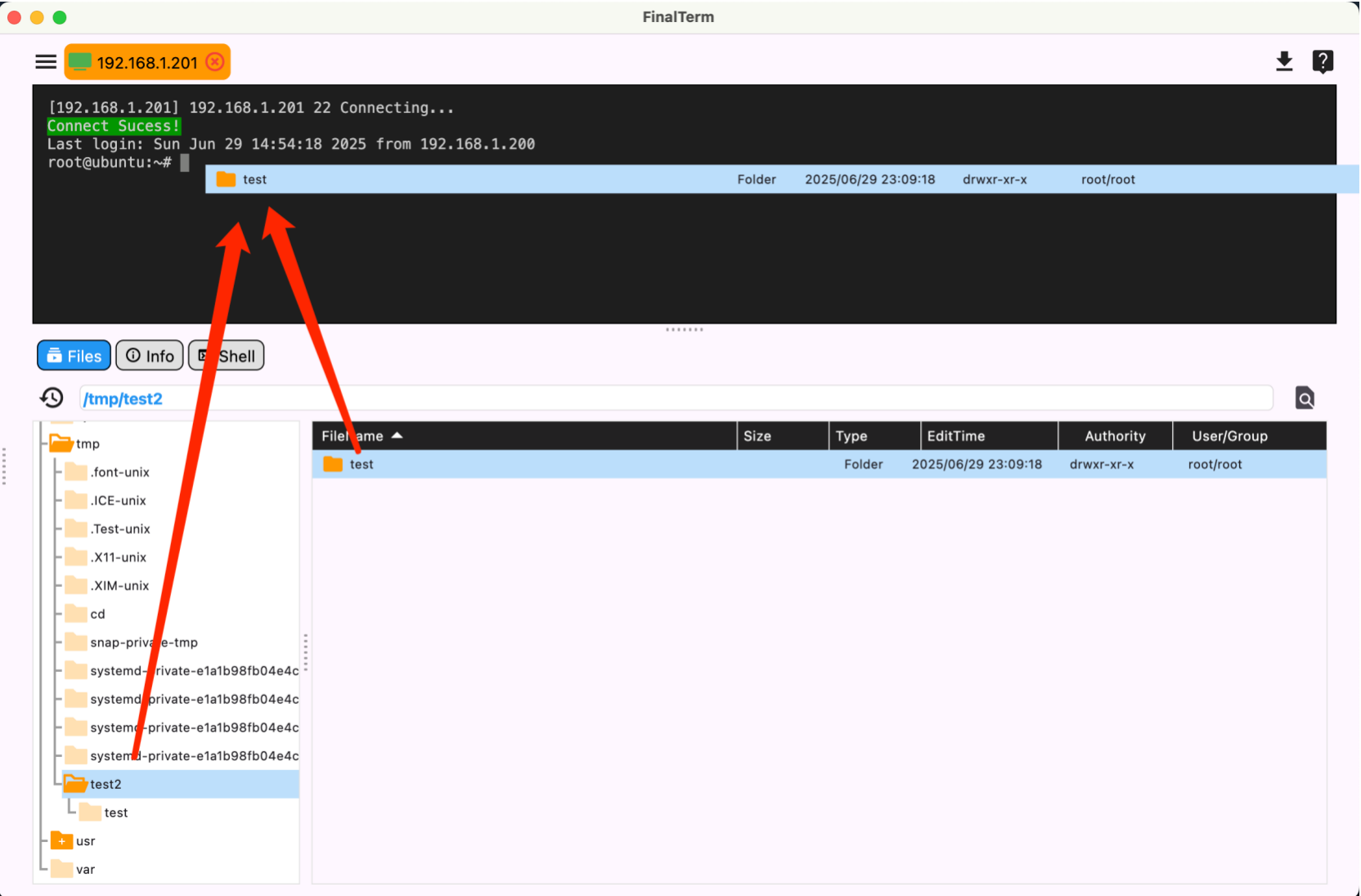
- Select the file you want to drag, and drag it directly into the command line.
- The full path of the file will be appended to the command line.