

Scheduled Server Data Backup
- If you have not enabled the sync feature, the worst fear is accidentally deleting hard-entered servers, resulting in losing everything. Especially when you have many servers, re-entering them all is a very painful process.
- Enabling this scheduled server data backup feature can solve your problem.
- If you accidentally delete the software and lose data, as long as the backup files are not lost, you can reinstall the software and use the import feature in server management to import the backup file, instantly restoring your latest data.
Function
At the configured time, all server data in the software is periodically backed up to the specified directory.
Add New
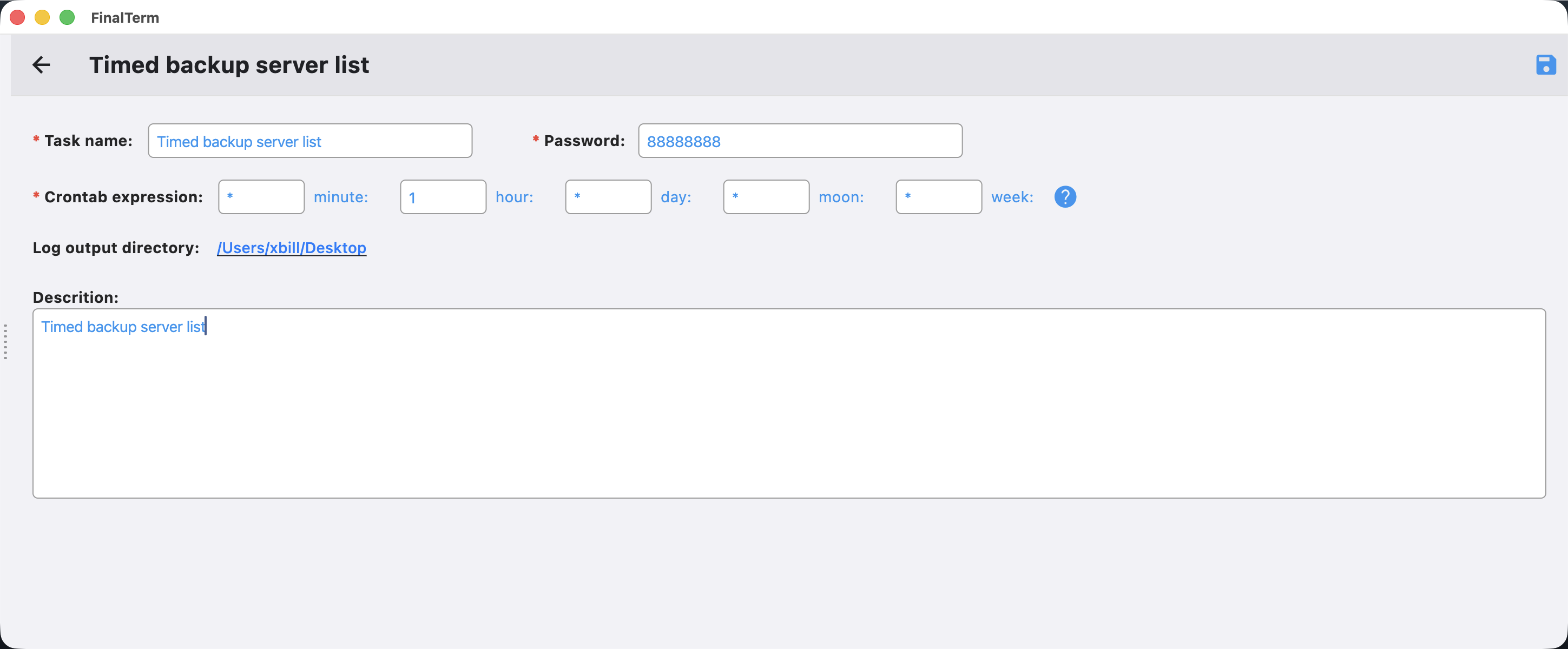
- Task name: Enter the name of the task
- Password: Enter the password for the export file. Please remember this password, as it will be required when importing the file.
- Execution time: Configured using a crontab expression.
💡Tip: The execution time is based on the current computer's time, not the server's time.
- Log save directory: Select the directory address for this scheduled task's output logs. It defaults to the output directory configured in Settings.
- Description: Enter a description for this task.
Execution

- The task is executed based on the current computer's time. It will start when the scheduled time arrives.
- The current execution status and results are displayed in the list.
💡Tip: Please do not perform any editing operations while the task is executing.
Menu
Edit
Click the edit button for a task to navigate to the task editing interface.
Log
- Displays the execution list for the current task.
- Click the details button for each execution to view its details.
- Click view run log to display the execution log.
Delete
Delete the selected scheduled task.