

SFTP File Management
Conveniently and quickly manage files on the server side.
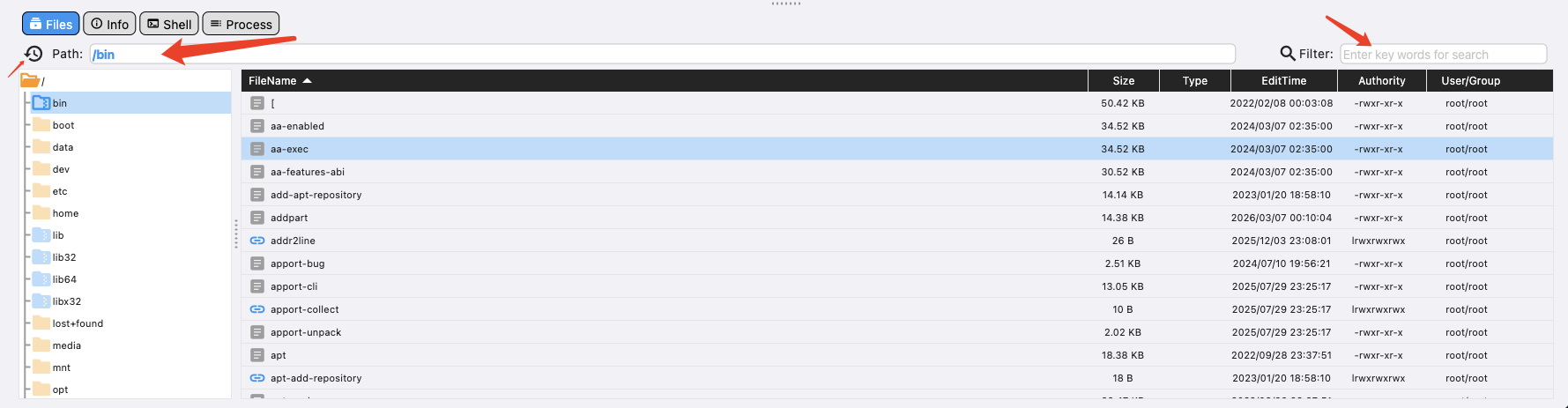
Top Quick Menu Area
History Access Records
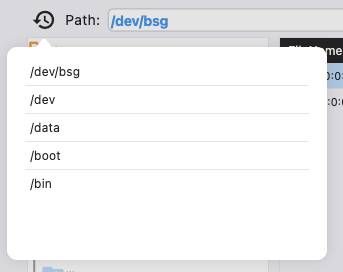
- Displays all historical path records for the current server.
- Select a record to quickly navigate to that directory. This is especially convenient for quickly switching between frequently used directories.
💡Tip: When the server connection is closed, the corresponding access history records will be cleared.
Quick Path Navigation

- Displays the full path of the current working directory.
- Enter another full path and press Enter. SFTP will automatically navigate to that directory level by level. When a sub-level does not exist, it stops.
💡Tip: With this feature, you can quickly navigate to a specific path by pasting the full path.
File Filter

- Enter the keyword of the file you want to search for.
- The content area will automatically perform a fuzzy search and display matching files or directories.
💡Tip: After finding the file, you can download or delete it via the right-click menu.
Sidebar Quick Directory Area
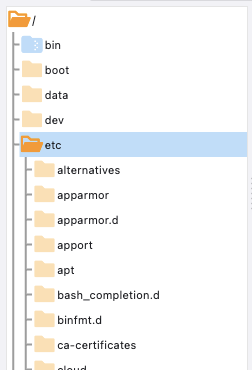
- Displays the entire directory structure of the server.
- Click a directory to expand/collapse its subdirectories.
- Select an element: on desktop, you can drag it to another directory to move it. See the drag operation section below for details.
- Select an element: on desktop, right-click to open the operation menu; on mobile, long-press to open the operation menu. See the menu functions section below for details.
Right Content Area
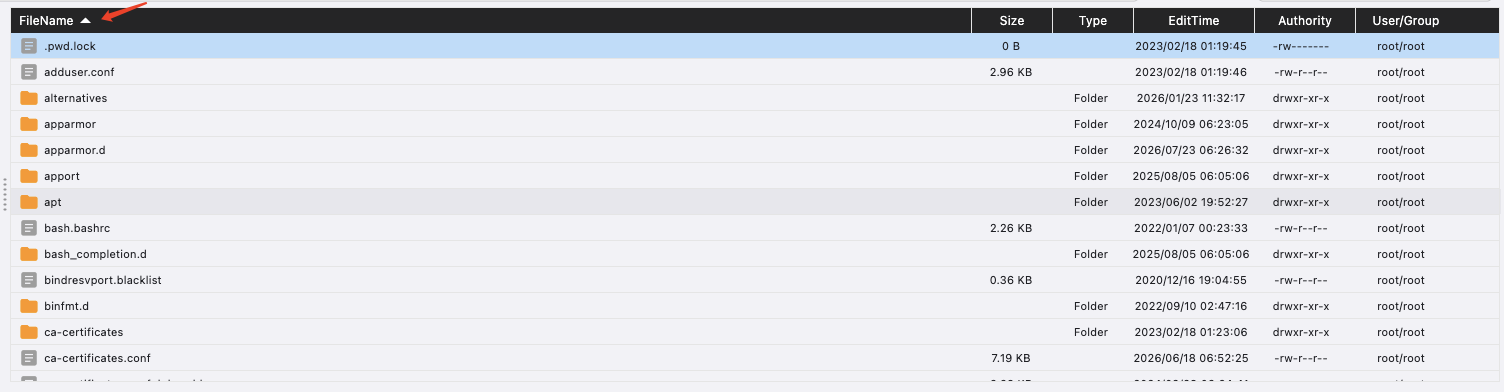
- Displays all subdirectories and files under the directory selected in the sidebar.
- Click a column header to sort in ascending or descending order by that column.
- Hold Shift for continuous multi-selection, then right-click to perform menu operations. See the menu functions section below for details.
- Hold Ctrl for non-contiguous multi-selection, then right-click to perform menu operations. See the menu functions section below for details.
- Select an element: on desktop, you can drag it to another directory to move the file or directory. See the drag operation section below for details.
Context Menu Functions
- Select any element: on desktop, right-click; on mobile, long-press to open the context menu.
- Different file types (directory, file, symlink) have slightly different menu options.
Refresh
- Refresh the currently selected file/directory list.
💡Tip: Opened directory/file lists are cached. You can manually refresh to get the latest file/directory list.
Open (System Default)
- If a directory is selected, the system will retrieve and expand all subdirectories and files under it, similar to a single click.
- If a file is selected on desktop, the software will download the file and open it using the system's registered application for that file type.
- If a file is selected on mobile, the software will download the file and display its contents using the built-in text viewer.
💡Tip: The application used to open a file depends on your system's registered file associations, which may vary by user. Mobile devices have limited performance and memory, so avoid opening large files on mobile. You can edit the file directly in the application used to open it. After saving, the system will automatically upload the updated file to the server.
Open (Custom)
- If no application has been set for opening files, you will be guided to select one first. Recommended: Sublime Text.
- The software will download the file and open it using the configured application.
💡Tip: You can edit the file directly in the application used to open it. After saving, the system will automatically upload the updated file to the server.
Rename
- Select the directory or file you want to rename, then choose Rename from the right-click menu.
- Enter the new name in the dialog box.
- Click OK to complete the rename.
Delete (rm)
- Select the file or directory you want to delete, then choose Delete from the right-click menu.
- Hold Shift or Ctrl to multi-select files or directories, then choose Delete from the right-click menu.
- A confirmation dialog will appear as a final warning.
- Confirm to delete the file or directory.
💡Tip: Deleting a directory will delete all files and subdirectories within it.
Copy Path
- Select the file or directory, then choose Copy Path from the right-click menu.
- The full path of the directory or file will be copied to the clipboard.
Set as Working Directory
- Select the file or directory, then choose Set as Working Directory from the right-click menu.
- The SSH command window will cd to the selected file's directory.
Jump to Original File
- This menu function is effective for symlink files.
- Selecting this menu will automatically navigate to the original file that the symlink points to.
Backup
- This menu is effective for files. Selecting this menu will create a backup file of the selected file in the current directory.
Download
- Select the file or directory you want to download, then choose Download from the right-click menu.
- Hold Shift or Ctrl to multi-select files or directories, then choose Download from the right-click menu.
- The selected download tasks will be added to the upload/download task manager in the top-right corner. See the Upload and Download Task Management section for details.
Upload
- Select the directory where you want to upload files, then choose Upload from the right-click menu.
- Alternatively, choose Upload from the right-click menu in the content area.
- A file selection dialog will appear. After selecting a file, it will be uploaded to the directory.
- The selected upload tasks will be added to the upload/download task manager in the top-right corner. See the Upload and Download Task Management section for details.
💡Tip: On desktop, you can directly drag local files or directories to the corresponding server directory to upload them.
Create File
- Select the directory where you want to create a file, then choose Create File from the right-click menu.
- Alternatively, choose Create File from the right-click menu in the content area.
- A file creation dialog will appear. Enter the name of the file you want to create.
- Click OK to complete the file creation.
Create Directory
- Select the directory where you want to create a subdirectory, then choose Create Directory from the right-click menu.
- Alternatively, choose Create Directory from the right-click menu in the content area.
- A directory creation dialog will appear. Enter the name of the directory you want to create.
- Click OK to complete the directory creation.
Compress Directory
- This menu only applies to directories.
- Clicking this menu will compress the selected directory in the current directory using the tar command.
💡Tip: Compressing via the menu will block the interface. For large directories, it is recommended to use the command line for compression to avoid blocking the interface.
Edit Permissions
File and directory permission editing is slightly different.
Edit File Permissions
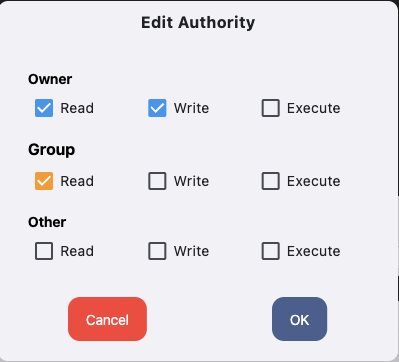
- Select the permissions you want to assign as shown above.
- Click Save to complete the permission settings.
💡Note: This operation is related to system permissions. Non-administrator users or non-password-authenticated users may be required to enter a password to complete the operation successfully.
Edit Directory Permissions
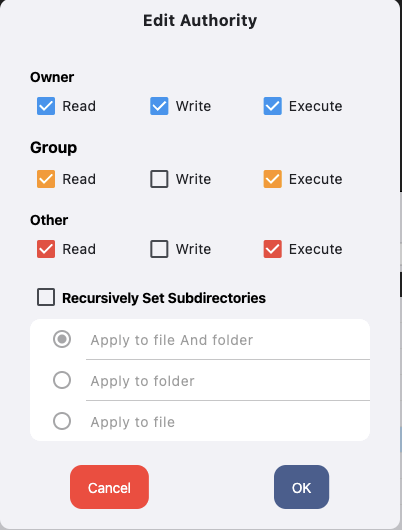
- Select the permissions you want to assign as shown above.
- Choose whether to apply the settings to subdirectories.
- Click Save to complete the permission settings.
💡Note: This operation is related to system permissions. Non-administrator users or non-password-authenticated users may be required to enter a password to complete the operation successfully.
Other
Online Editing of Server-Side Files
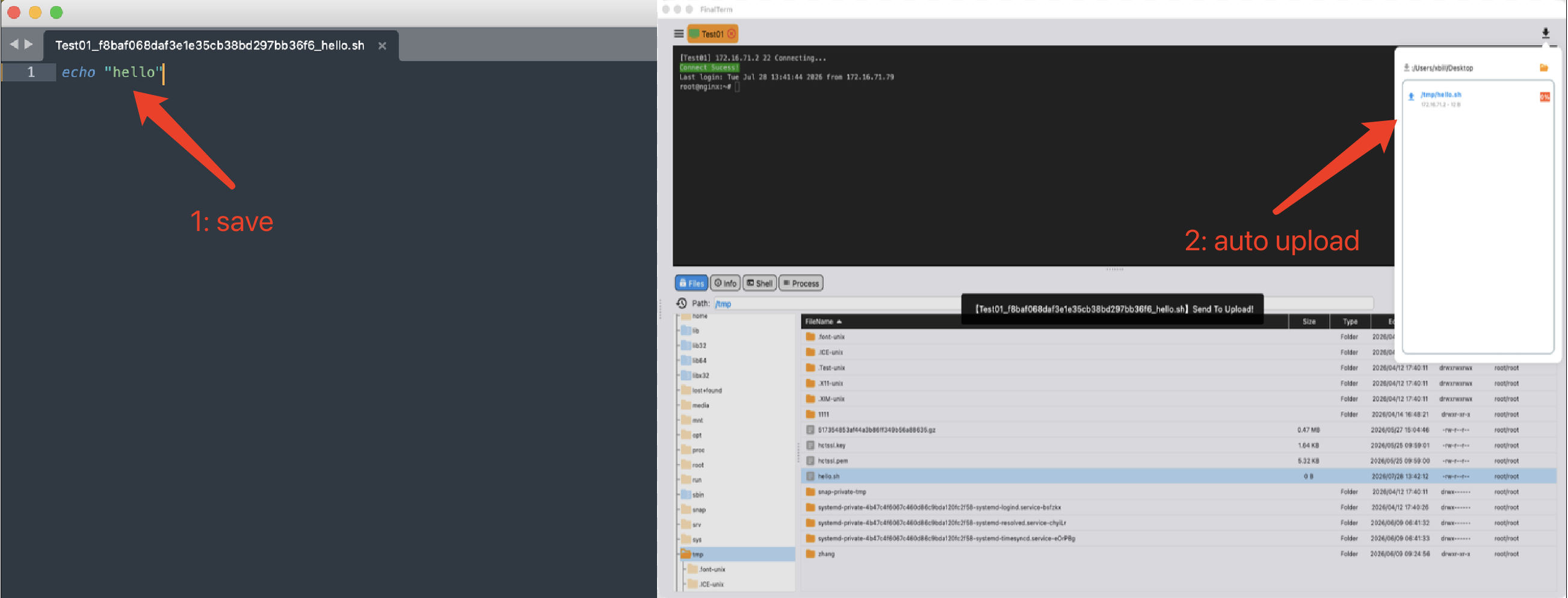
- Select a server-side file, then choose Open from the right-click menu.
- The server-side file will be opened on your local computer.
- Edit the file content, then save.
- The saved file will be automatically uploaded and updated to the server.
- If the auto-backup feature is enabled, the server-side file will be backed up before updating. The backup file is saved in the same directory as the original file, renamed as: original_filename_YYYYMMDD_HH_MM_SS_SSS.extension.yfbk
Drag and Drop
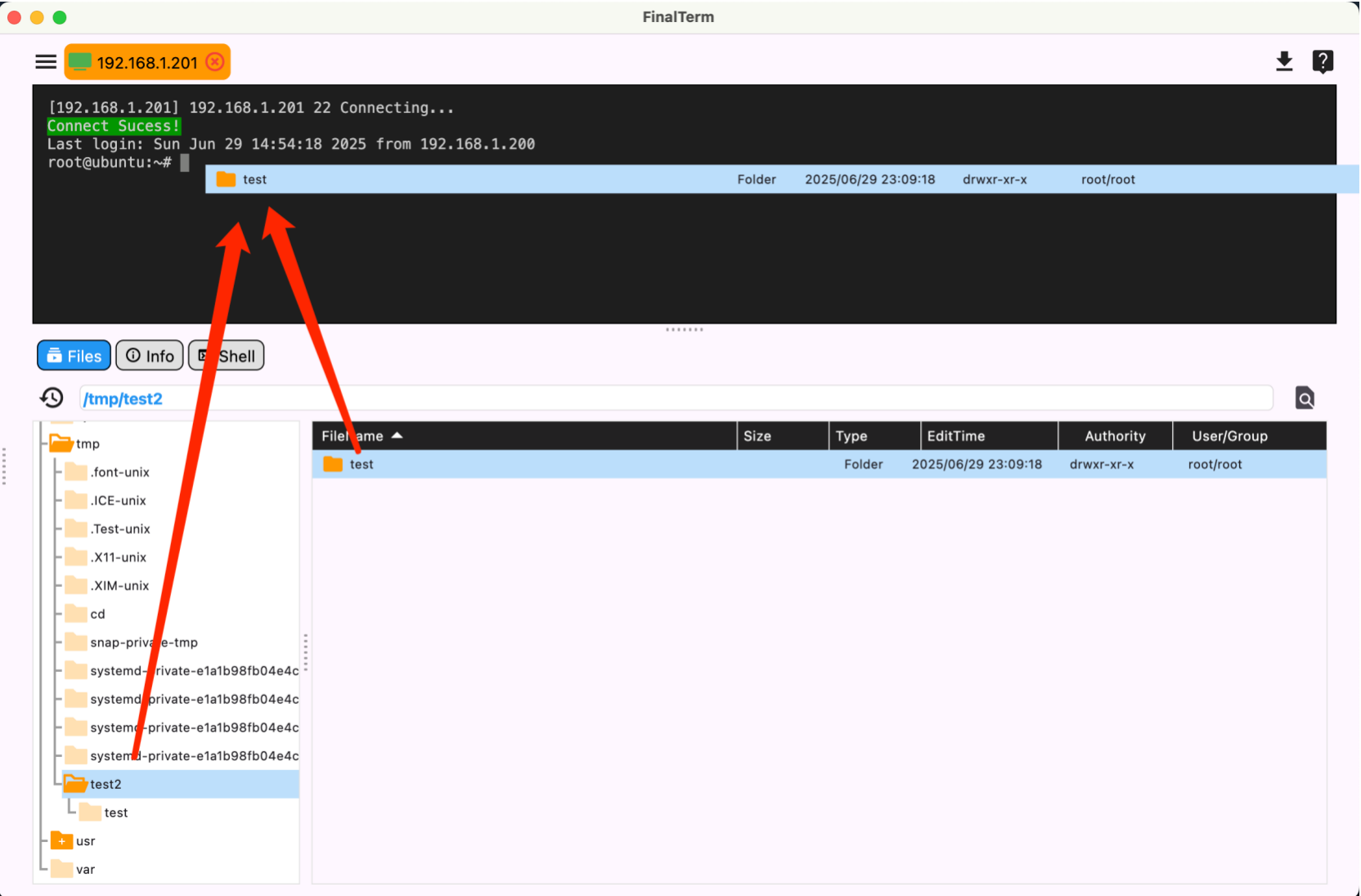
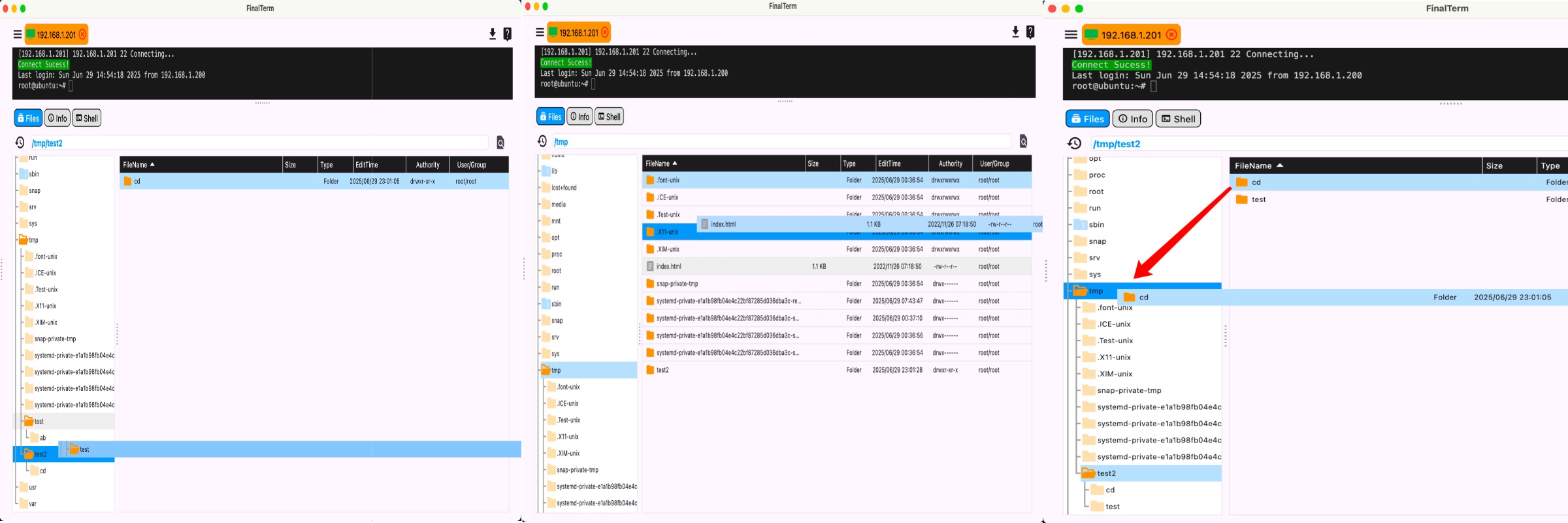
- You can drag a directory onto another directory in the sidebar to move it.
- You can drag a directory or file onto another directory in the content area to move it.
- You can drag a directory or file from the content area onto a directory in the sidebar to move it.
- You can drag a directory or file from the content area or sidebar onto the SSH command window to quickly input the full path of the file or directory.
Batch Download
- The files and directories in the content area support multi-selection by holding Shift or Ctrl.
- When multiple files are selected, right-click and choose Download from the menu.
- The selected files will be sent to the upload/download task manager for downloading.
💡Tip: Mobile does not support multi-selection and therefore does not support batch download.
Batch Delete
- The files and directories in the content area support multi-selection by holding Shift or Ctrl.
- When multiple files are selected, right-click and choose Delete from the menu.
- A confirmation dialog will appear. After confirmation, the selected files will be deleted.
💡Tip: Mobile does not support multi-selection and therefore does not support batch delete.
Superuser Privileges
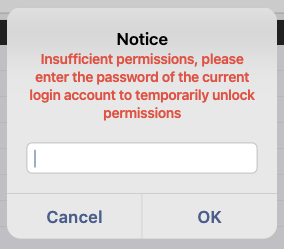
- The current user is not a root user or is logged in using a private key.
- When certain operations fail, the software will attempt to request sudo access, which may require you to enter your password.
- Please follow the on-screen instructions to proceed.
💡Tip: If you have any questions, please contact online customer support for assistance.